Features
The Explorer, file tabs, saving, image previews, hover documentation, Go Live, the terminal and Focus Mode.
mIDE holds one window and one project. This page describes every working surface and the behaviour you can rely on, including the cases where the app refuses an action on purpose.
Projects and recents
Open a folder with Ctrl O, the start page or the menu. The start page lists up to ten recently opened projects, newest first. Click one to reopen its folder, or use the remove button to forget it without deleting any files on disk.
Missing folders stay in the list until you remove them. A failed open leaves the current workspace unchanged. Project and open-file sessions are not restored between launches; themes, fonts and editor size are.
Explorer
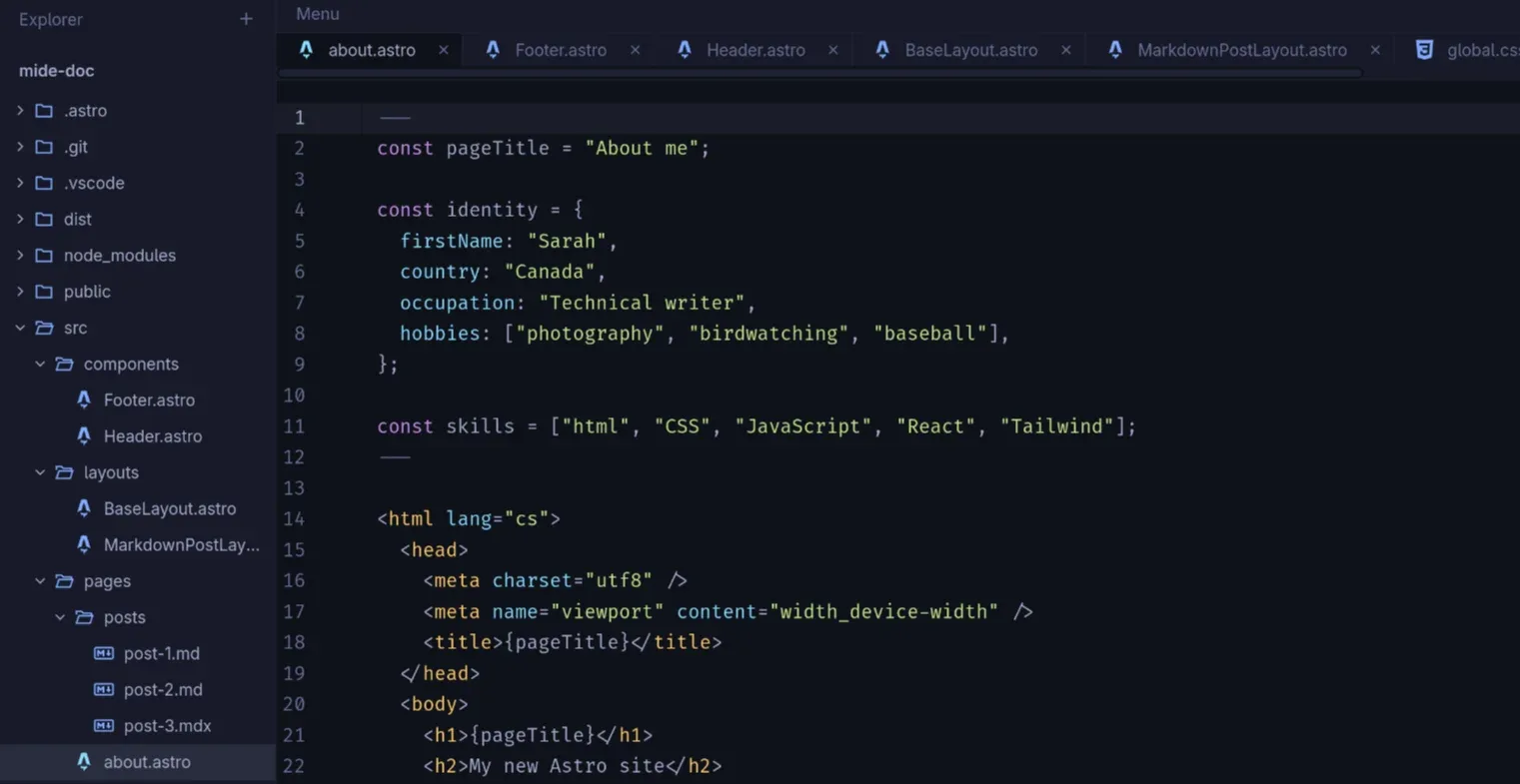
Directories load when expanded. Refresh updates the tree after external changes. The plus button creates an item at the project root; right-click an item, or press Shift F10, for creation, rename and permanent deletion. Deletion does not use the system trash.
| Action | How |
|---|---|
| Move inside the project | Drag an item in the Explorer, or use Move to… |
| Copy files in from outside | Drop them on a folder or the project root |
| Copy a path | Copy Relative Path or Copy Absolute Path |
| Refresh | Run refresh after changes made outside mIDE |
Open tabs and unsaved edits follow moves. Paths written inside code are left as written, so update imports yourself. External folders are not imported. Name collisions are reported without replacing existing items.
Names and paths support Unicode. Paths that pass through symlinks outside the selected project cannot be opened or edited; deleting a link deletes the link itself, not its target.
Tabs and saving
HTML, CSS, JavaScript, TypeScript, JSX, TSX, Astro, JSON, Markdown and MDX have syntax highlighting. Other UTF-8 files open as plain text. Text files over 16 MiB, other binary files and invalid UTF-8 are rejected. UTF-8 BOM and LF/CRLF line endings are preserved.
Closing a changed tab, switching projects or closing the window asks whether to save, discard or cancel. The current cursor line and its line number are subtly highlighted. Unsaved files show a small dot on the tab.
Auto Save
Auto Save is enabled by default. It saves changed open files when focus leaves the editor, including when you switch to another application. Turn off Settings → Saving → Auto Save on leaving the editor to save manually with Ctrl S.
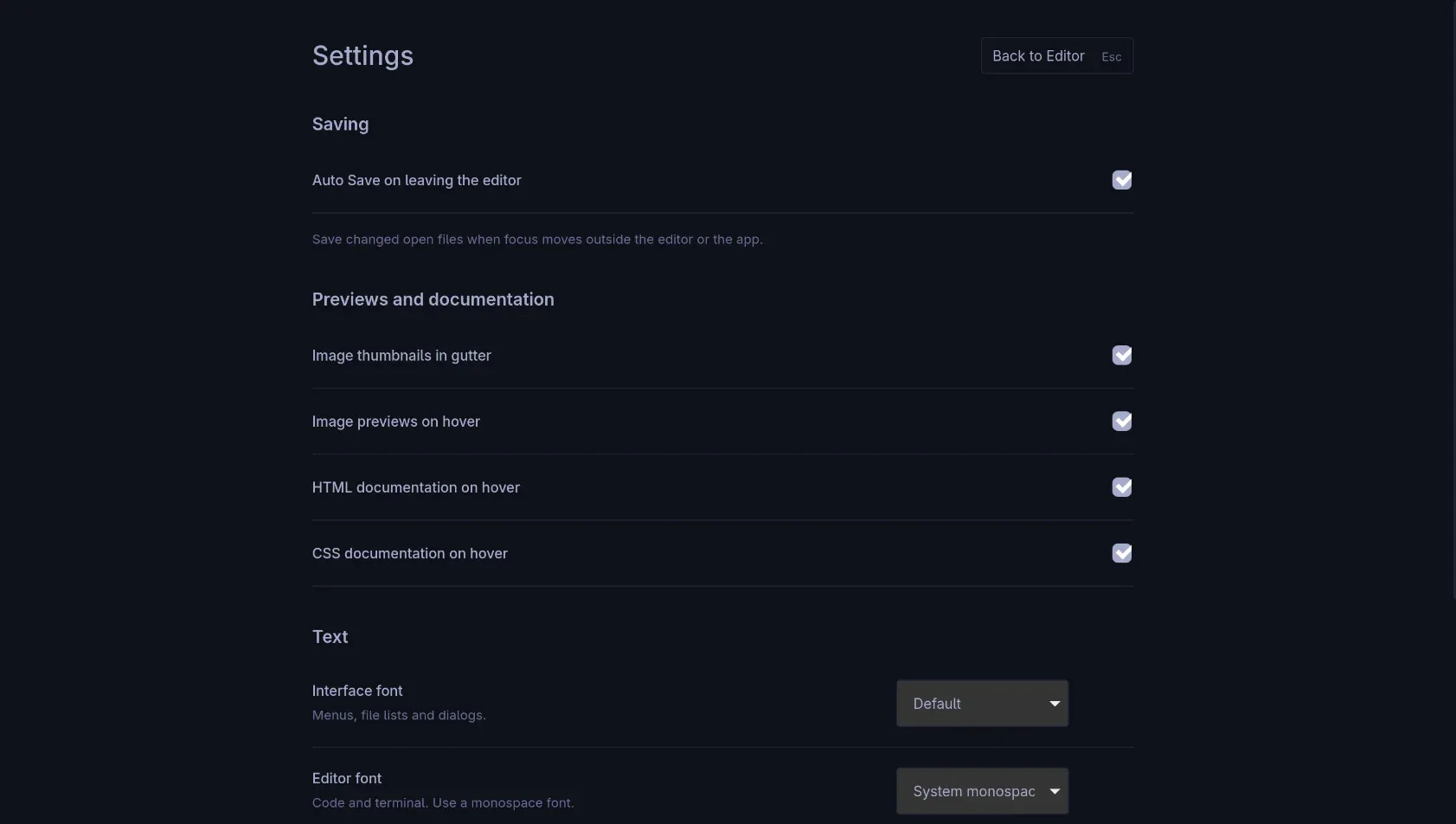
Auto Save saves changed open files, not every file in the project. It is a local preference. Conflicts and failed writes keep files marked as unsaved. If a file changed on disk while you were editing, mIDE reports a conflict instead of overwriting it: copy your changes if needed, close or discard the tab, reopen the file and apply them again.
Image previews
PNG, JPEG, GIF, WebP, AVIF, SVG and ICO open in read-only image tabs with dimensions, file size and path. SVG previews offer Open Sourcefor editing. Previews are limited to 16 MiB.
In HTML, Astro, JSX, TSX and MDX, valid local image src paths show a tiny thumbnail beside the line number. Multiple images on one line share a thumbnail with a count; hover it to see all of them. Icon links usingrel="icon", including touch and mask icons, are supported.
Hovering a path shows an image preview or explains why it could not load. Relative paths resolve from the source file; a leading / starts at the project root. Dynamic expressions, framework aliases and remote images are not resolved.
Three independent switches in Settings control this, all enabled initially:Image thumbnails in gutter,Image previews on hover andHTML documentation on hover.
Hover documentation
Hover a standard HTML tag for a short offline description and aRead on MDN link, which opens the element reference in your system browser.
Hover a common CSS property name for an offline explanation, a small example and a direct MDN property link. This works in CSS files, HTML and Astro style blocks, and static style attributes. Selectors, comments, custom properties and JavaScript style objects do not trigger CSS documentation.CSS documentation on hover has its own setting and is on by default.
Esc dismisses a tooltip before it exits Focus Mode.
Go Live
Go Live sits at the trailing end of the status bar. It serves the open folder at http://127.0.0.1 on the first free port from 5500 through 5509, then opens that address in your system browser. The button shows the port while the server runs; click it again to stop.
Saving a file reloads the open pages. The project-root index.htmlalso offers Open in Browser in its right-click menu. Switching projects or closing the window stops the server. Focus Mode hides the control and leaves the server running.
Terminal
Toggle the terminal with Ctrl J. It starts lazily in the project root, uses your own shell configuration and adjusts its rows and columns automatically. Drag its top edge to resize, or focus the divider withTab and use the arrow keys.
The terminal's height is retained while hidden, and hiding it keeps its shell running. A project switch stops its processes after confirmation. On Unix it uses the account's configured shell, then $SHELL, then/bin/sh; on Windows, %COMSPEC% orcmd.exe.
If the shell exits, hiding and reopening alone preserves that ended session. Reopen the project to start a fresh one.
Focus Mode
Ctrl Shift Enter hides the Explorer, menu, status bar and terminal. File tabs stay visible so you can switch documents.Esc exits when no Find panel or dialog is open, and the exit shortcut appears briefly when Focus Mode starts.
Focus Mode restores the previous terminal visibility when it ends. The status bar's Go Live server keeps running while the control is hidden.
Formatting
Format Document (Ctrl ShiftF) uses the shipped, pinned Prettier and Astro plugin. It makes one undoable edit and does not save the file. Auto Save can save the result when you leave the editor; there is no format-on-save.
Project Prettier configs and plugins are intentionally not executed, so the result is stable and predictable. Formatting requires Node.js on the application's PATH, including when running the AppImage. No Node runtime is embedded.
Not in mIDE
There is no AI, autocomplete, language server, diagnostics, auto-closing tags or brackets, debugger, Git interface, documentation viewer, telemetry, account or extension system. Git runs in the terminal and documentation belongs in your browser.
The project's own tooling may still need additional requirements. mIDE only edits the files and runs the shell; it does not install or manage a project's dependencies.