Themes
Eleven built-in themes, Omarchy palette sync and small JSON themes you can import and remove.
A theme covers the editor, interface and terminal. Dark and Light are the bases; the other built-in themes and your imports inherit from one of them. Themes switch immediately and are saved locally without an Apply button.
Built-in themes
Swatches show, in order: background, file icon, keyword and string colors.
Choosing a theme
Open Settings → Theme with Ctrl , and pick a theme from the library. Search filters by name, and the All / Light / Dark filter narrows the list. Settings is available before opening a project and returns to the editor with Back to Editor orEsc.
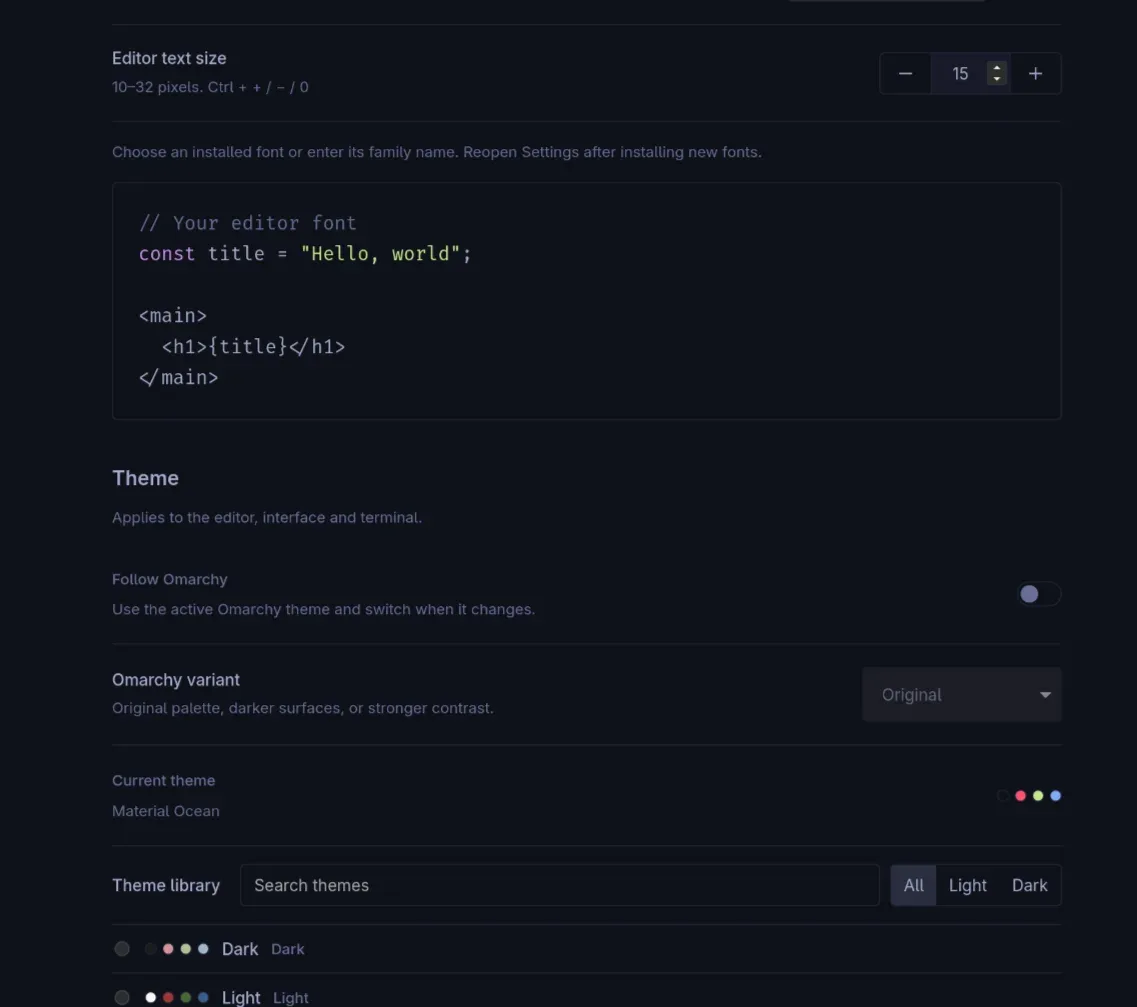
The interface font and the monospace editor/terminal font are chosen separately. The editor selector lists only monospace families.Custom font… accepts a family name manually, and missing families fall back to the default. Reopen Settings after installing new fonts; font files are never downloaded or installed by mIDE.
Follow Omarchy
Follow Omarchy maps the active Omarchy desktop palette onto the editor and switches when that desktop theme changes. Original, Darker and Contrast change only that mapped palette, not the other themes.
This is optional. Without it, mIDE uses the theme you selected directly.
Import and remove
Import Theme… adds a UTF-8 JSON file through a native file dialog. A valid theme is applied immediately and saved locally; the original file is not needed afterward. Importing the same name replaces that imported theme.
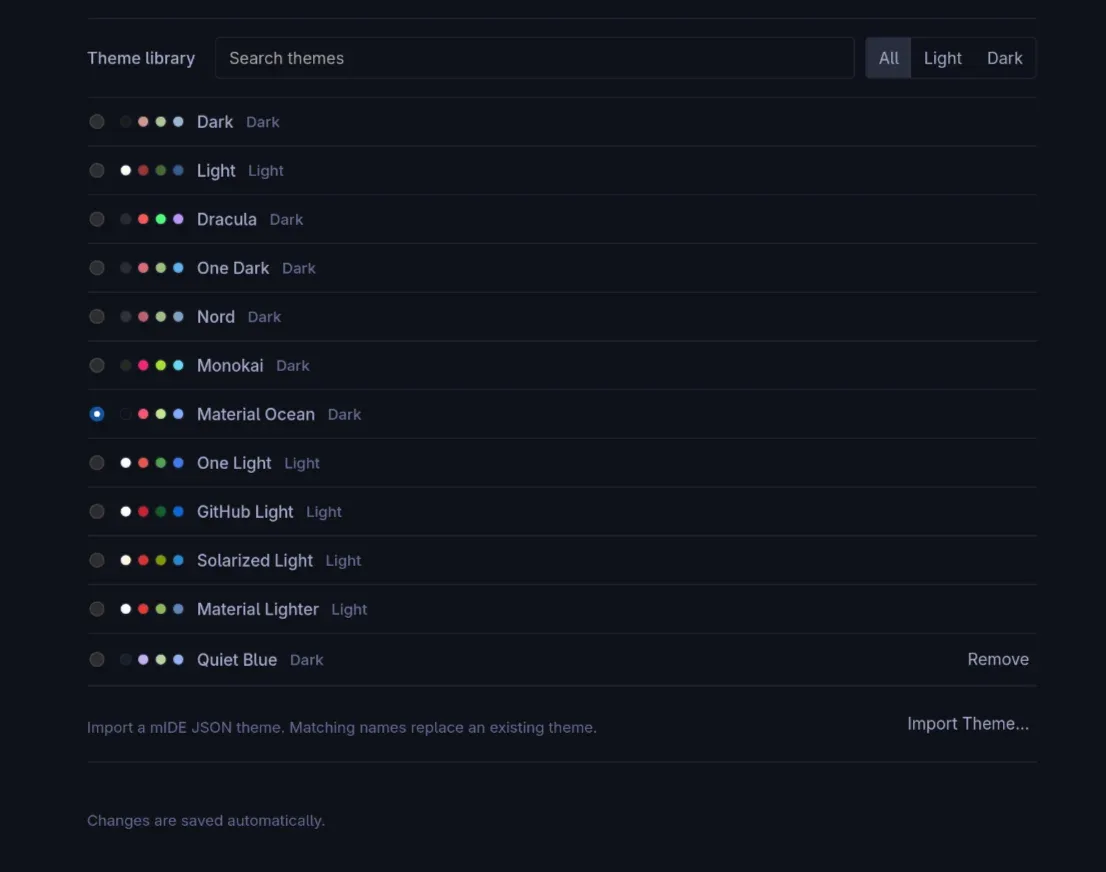
Remove deletes an imported theme. Removing the selected theme returns to its Dark or Light base. Built-in themes stay in the library and cannot be removed.
The repository includes a working example:themes/quiet-blue.json.
Theme file format
The mIDE format is intentionally small. It is not a VS Code or TextMate theme and does not support their fields.
{
  "version": 1,
  "name": "My Theme",
  "variant": "dark",
  "colors": {
    "bg": "#19202b",
    "fg": "#dce5f3",
    "file-icon": "#91b5f0"
  }
}
Use dark or light as the base. Omitted colors inherit from that base, so a theme may define only a few keys.
| Group | Keys |
|---|---|
| Interface and editor | bg, surface, raised,fg, muted, border,selection, active-line,cursor, focus, file-icon,file-icon-active |
| Syntax | syntax-keyword, syntax-string,syntax-number, syntax-comment,syntax-type, syntax-property |
| Terminal ANSI | terminal-black, terminal-red,terminal-green, terminal-yellow,terminal-blue, terminal-magenta,terminal-cyan, terminal-white |
| Terminal bright | Any of the above with terminal-bright-, for exampleterminal-bright-blue |
Terminal background, foreground, cursor and selection share the editor colors, so there are no separate terminal keys for them.
Limits and validation
- Every color must be an opaque six-digit
#RRGGBBvalue. - Files are limited to 64 KiB and names to 60 characters.
- The library holds at most 50 imported themes.
- Unknown fields, unsupported versions and invalid colors are rejected without applying the theme.
- Themes cannot include scripts, fonts, images or extensions, and imports do not change your files, editor history or running shell.